Happinetz
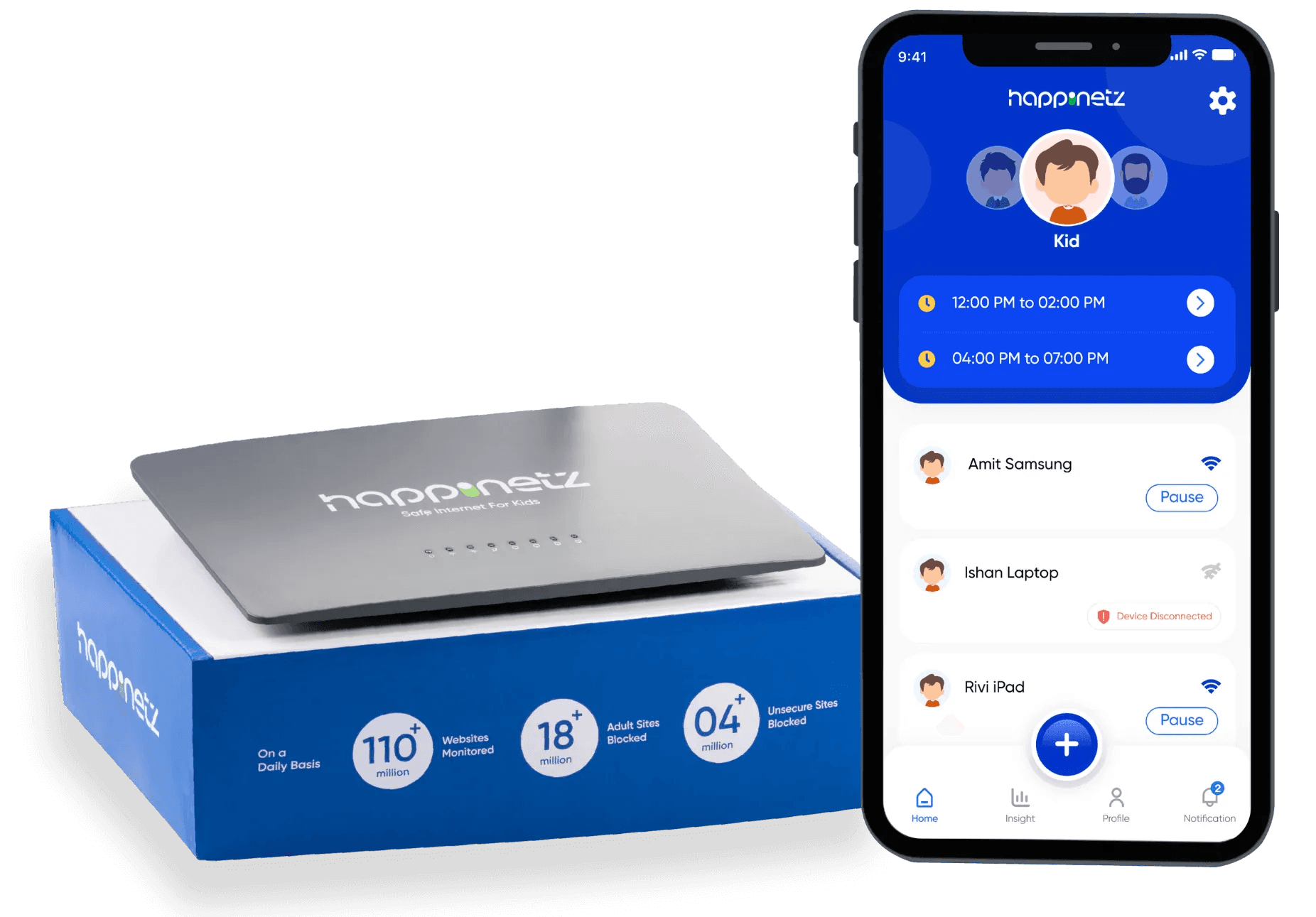
Happinetz helps parents keep their children safe online by blocking harmful content and controlling screen time.
It connects to your home Wi-Fi and protects all devices automatically.
Timeline
2-3 Months
Team
1 Product Designer
2 Product Owner
3 Developers
Responsibilities
User research, Workflow diagrams,
Ideation, Wireframes, UI design
Prototyping, usability testing,
UI handoff
Tools
Adobe XD
Project Overview
The Problem
Parents find it difficult to protect their children from harmful online content and manage screen time across different devices.
They need a simple and easy solution to keep their children safe online.
The Goal
To provide parents with a simple and effective way to protect their children online by blocking unsafe content and managing screen time across all home devices.

Design Process
I followed an interactive user-centered design approach in which we have to focus
on the users and their needs in every step.
Empathize
User Research
Empathy Map
Persona
Define
Problem Statement
Goal
Ideate
Brainstorming
Competitive Analysis
Prototyping
User flow
IA
Wireframe
Prototype
HI-FI Design
Test
Usability Test
User Research: Summary
I conducted user interviews with parents to understand their concerns and challenges in managing their children’s digital activities. I used empathy maps to organize their thoughts, feelings, and pain points.
I found that many parents worry about screen time, online safety, and not having clear visibility into their child’s digital behavior. This showed a need for a simple and effective parental control solution that is easy to use and builds trust.
Empathy Map
User
Thinks
Am I doing enough to keep my child safe online?
She’s smart… what if she finds a way around restrictions?
Parenting today feels harder with all this technology.
I hope she’s not exposed to anything harmful.
Feels
Worried about her daughter’s screen time habits
Guilty for not monitoring more actively
Frustrated with complicated parental control tools
Overwhelmed by tech and modern digital parenting
Does
Allows tablet/smartphone use for school and entertainment
Occasionally checks browsing history or app usage
Searches Google/YouTube for parenting tips
Talks to other parents for advice
Says
I don’t have time to constantly monitor everything.
I wish there was an easier way to control what she sees.
I’m not a techie—I just need something I can trust.
I want her to learn but not get addicted to screens.
User Persona

Riya, 34
HR Manager
Marital Status
Education
Location
Children
Tech Comfort
Married
MBA
Bangalore, India
One daughter, 9 years old
Moderate – uses mobile
About
Riya is a full-time working mom who balances her HR job with caring for her daughter’s education and well-being.
She often feels stressed managing work and parenting, especially with her child’s growing use of digital devices.
She lets her daughter use a smartphone and tablet for schoolwork and fun, but worries about the risks of unsupervised screen time.
Goals
Ensure safe and age-appropriate digital usage for her child
Track and limit screen time effectively
Get real-time alerts for risky or inappropriate activity
Teach her daughter digital responsibility while maintaining boundaries
Frustration
Finds most parental control apps too complex or technical
Feels guilty for not being digitally proactive
Lacks time to monitor manually every day
User Research: Pain Points
Monitoring
Parents cannot monitor what their children are watching or browsing online.
Harmful Content
Harmful or inappropriate content is easily accessible on different devices.
Screen Time
Managing screen time across multiple devices is difficult.
Insight
Parents lack clear insights into their child’s internet usage.
Competitive Analysis
App
What It Does Well
Limitations
Circle
Limited features outside Wi-Fi, less detail on individual apps
Easy to set up, good for home Wi-Fi control
FamiSafe
Good location tracking & activity reports
Can feel complex for non-tech parents
FamilyTime
Design is a bit cluttered, harder to navigate
Strong time limits & app blocking
FlashGet Kids
Lacks advanced controls like social media monitoring.
Simple setup and easy for beginners.
Mobicip
Some parents find settings hard to customize.
Good web filtering and device management.
User Flow
Splash Screen
Sign Up/Sign In
Walkthrought
Tracking
Monitorning
Insights
Available Device
“Choose Device add
them”
Start
Home
Screen time setup
Connected Devices
Settings
Add More Device
Profile
Subscription
Policy
Help
Logout
Insights
Select Profile
Screen Time
Category
History
Information Architecture
Sign In
Home
Notification
All Notification
Time Slot
Set Time Slot
Add Device
Add More Device
Connected Device
Show All Device
Pause Device
Disconnected
Profile
User Profile
Wifi Specific
Subscription
Help Center
Logout
Insight
Select Mode
Show Spent Screen Time
Category Wise Backdown
Device Use
History
Multiple Mode
Swipe Mode
Kids Mode
Teen Mode
None
Settings
Mode Setting
Kids Mode
Time Slot
Filter Apps & Sites
Advanced Filter
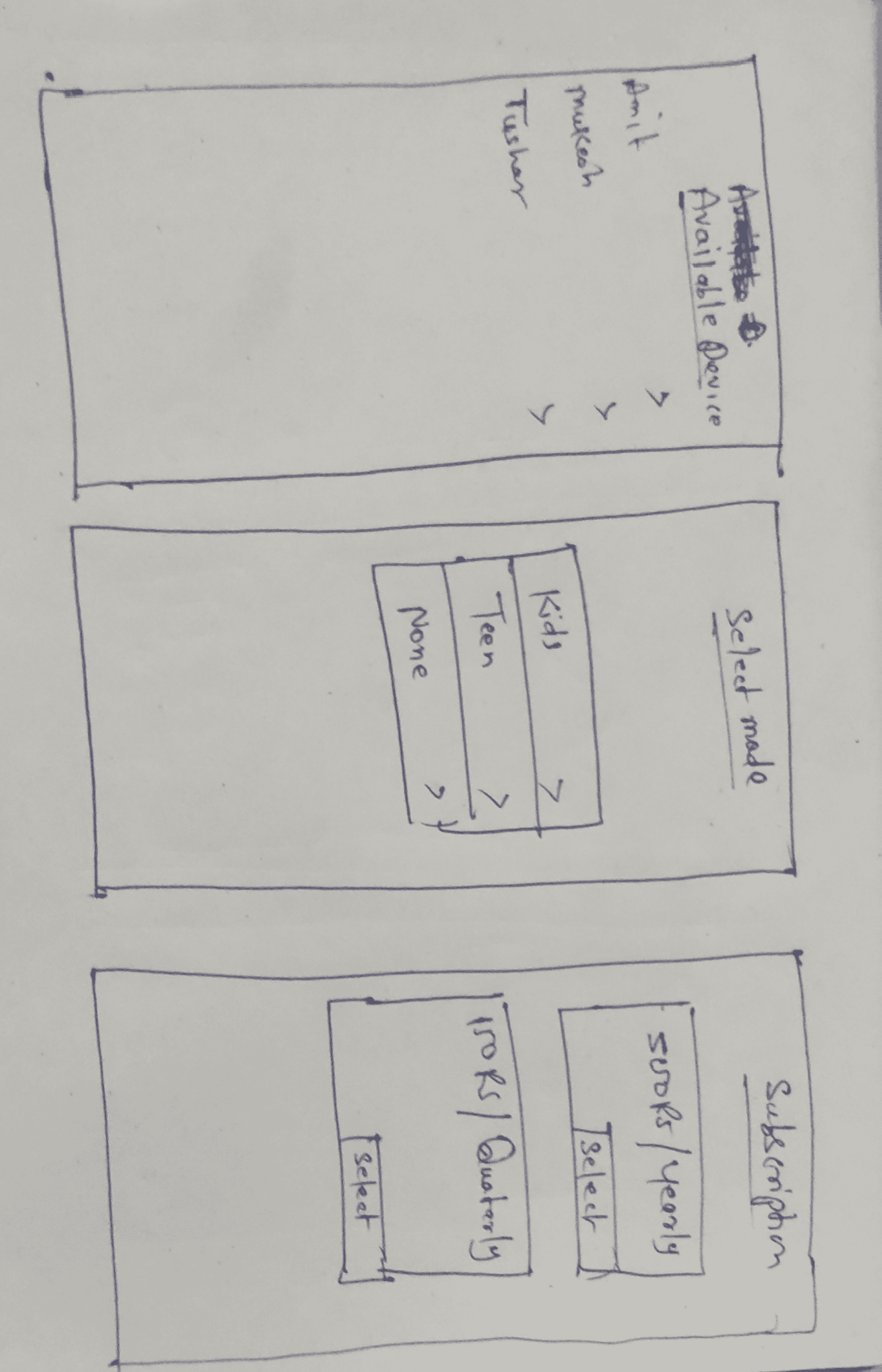
Paper Wireframe
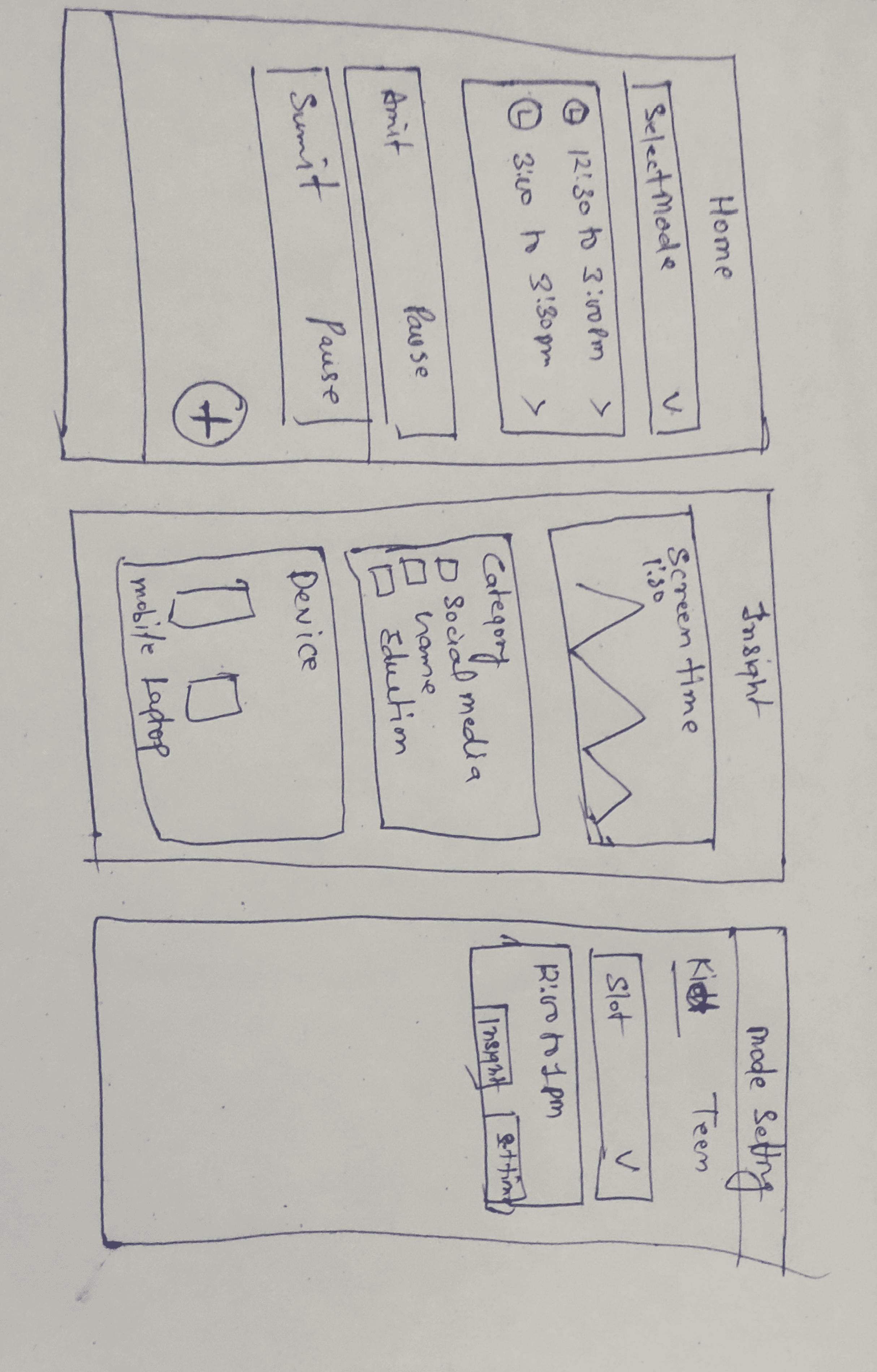
Focusing on the core features identified during user research, I sketched the first wireframes using pen and paper.
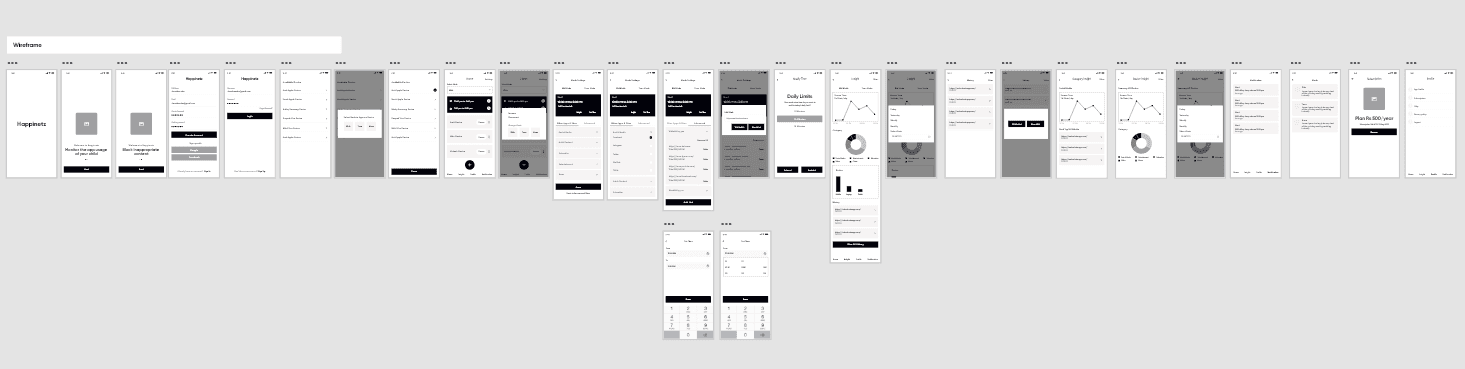
Digital Wireframe Prototyping
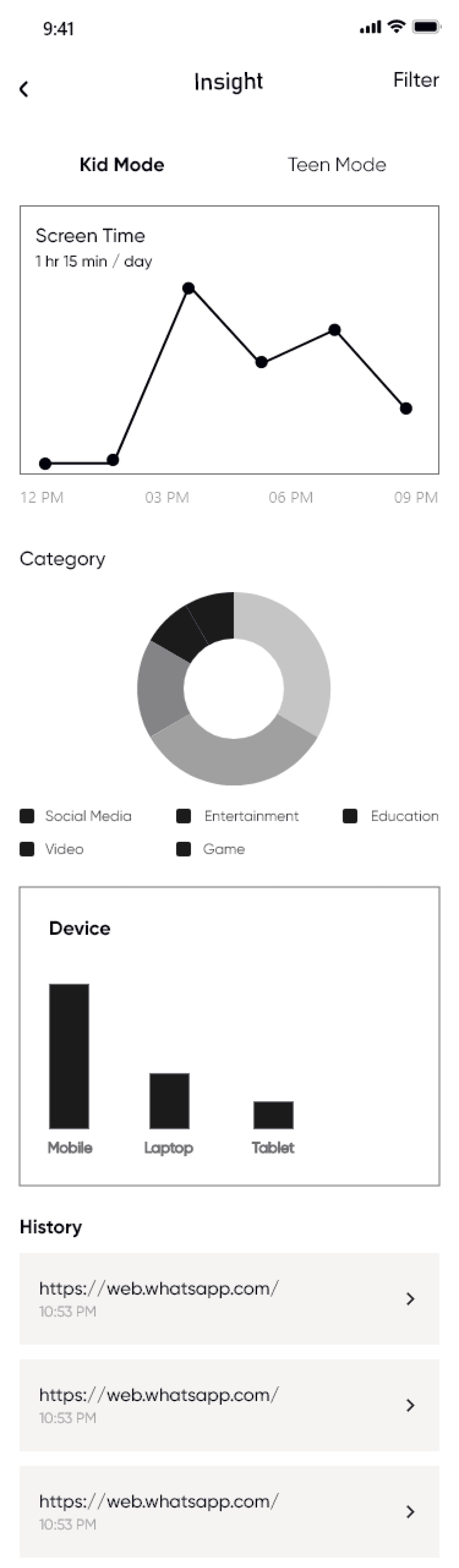
I created a low-fidelity prototype from the user flow diagram and wireframes to test functionality before incorporating it into the final design for end-users.
Usability Study: Parameters
Study Type:
Moderated usability study
Location:
Remote
Participants
5 to 6 Participants
Length:
25-45 minutes
Usability Study: Findings
1- Finding
Users confused by the insights. They wanted to see insights based on individual data.
2- Finding
The ‘Add Link’ button in Advanced Insight confused users because it looked like the main CTA
3- Finding
The ‘Available Devices’ screen showed up after every login, which frustrated users.
4- Finding
There was no confirmation message after any action.
Before Usability Study
After Usability Study
Mockups
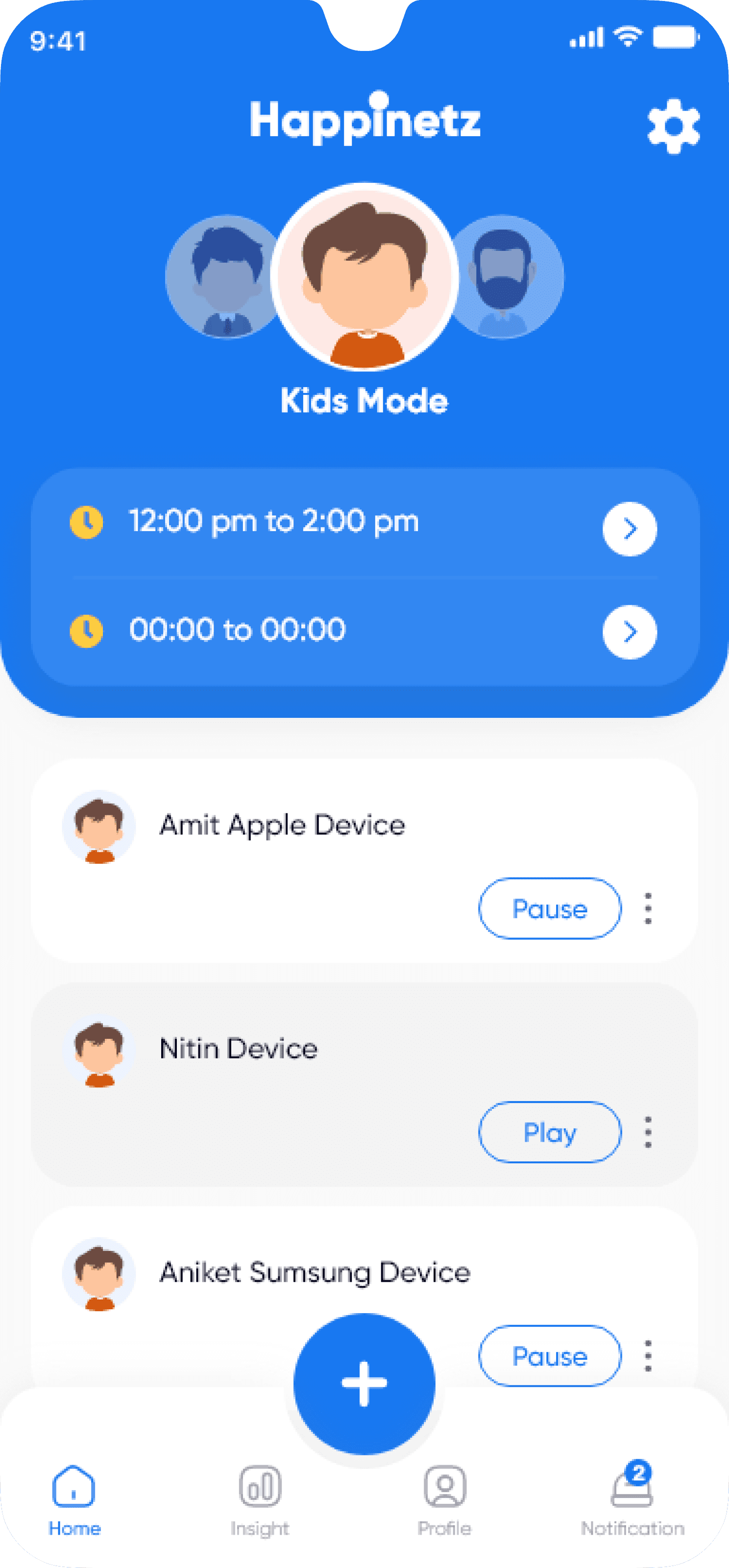
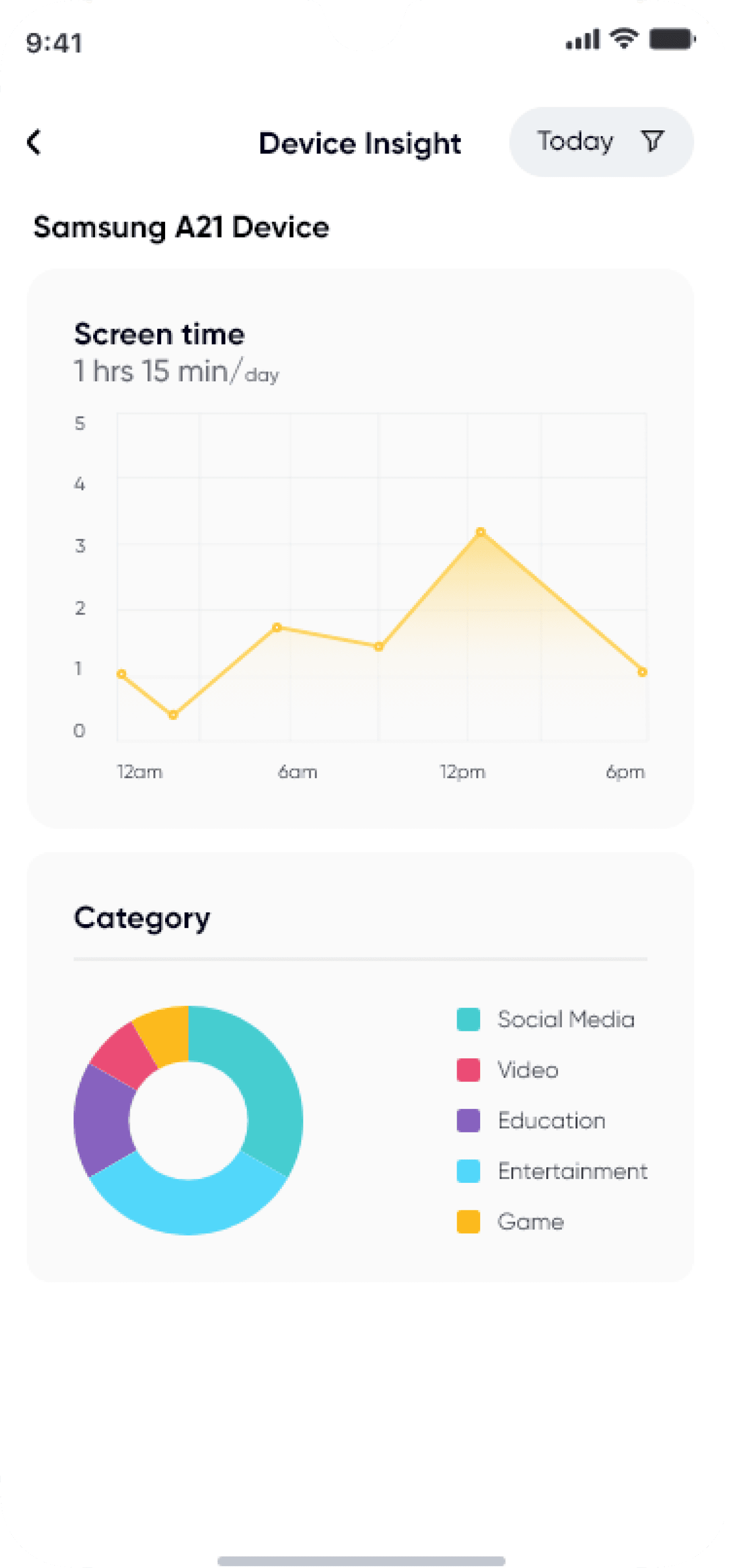
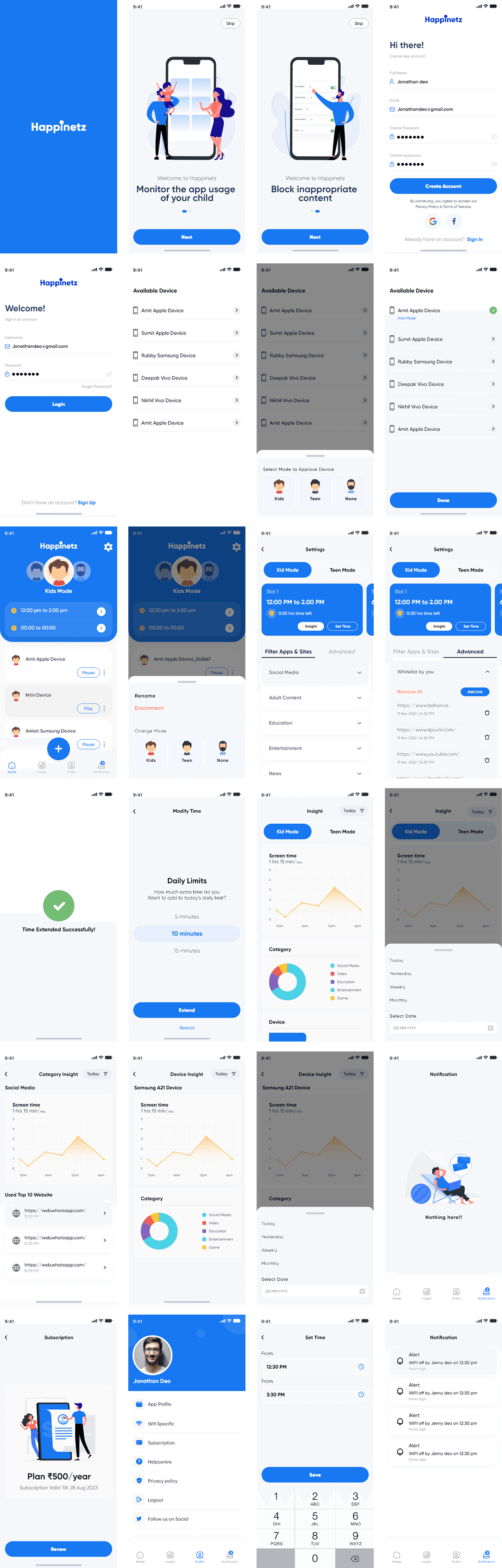
Based on the insights from the usability studies, I applied the design changes, including a Device based insight, confirmation screen, Add link CTA & Remove Available device every time.
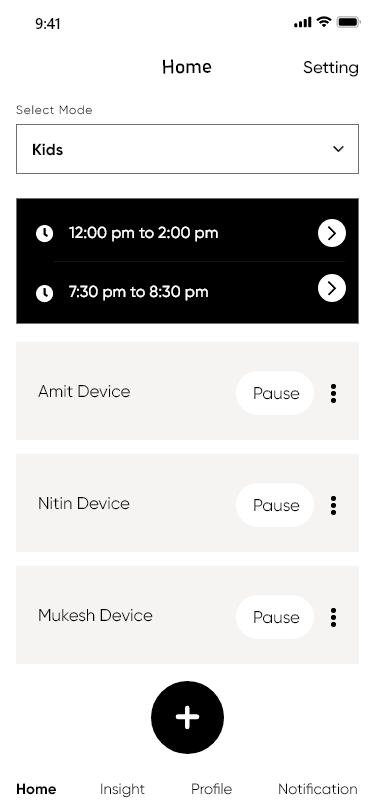
# Home Screen
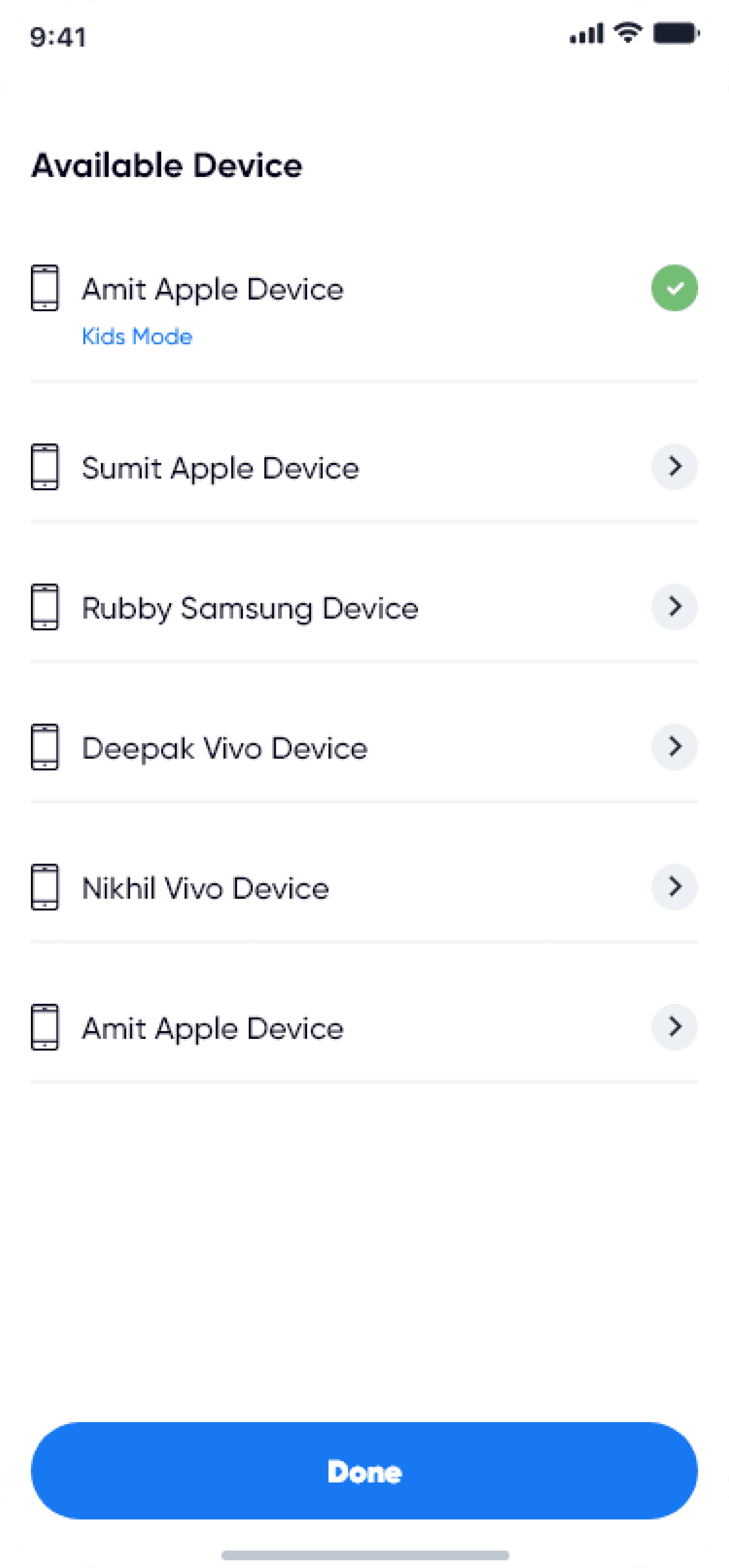
# Available Device
When the user signs up or clicks the plus button to add a device, this screen will appear. From here, the user can
easily add a device.
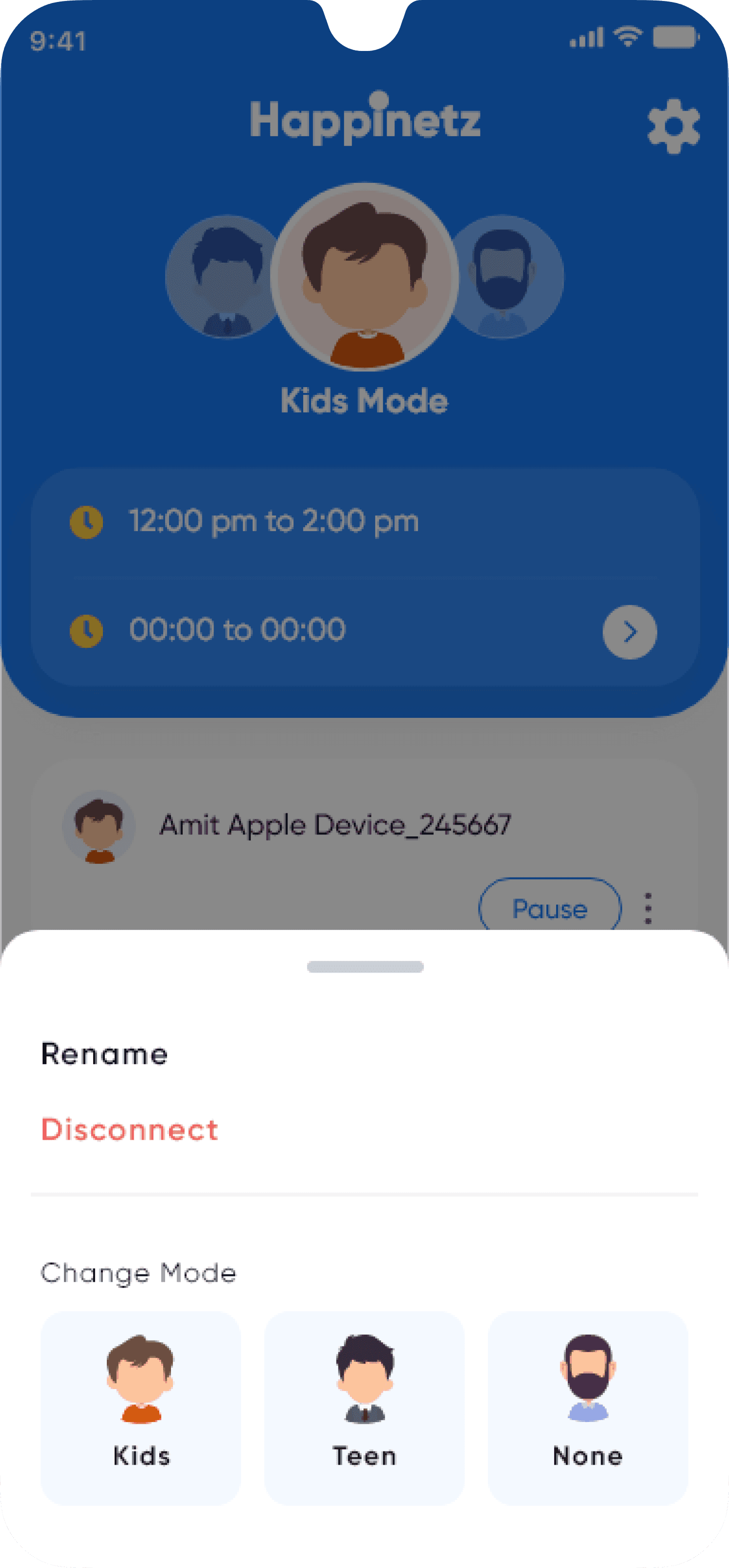
# Select Mode
After adding a device, the user can categorize it by mode —
Kids, Teen, or None.
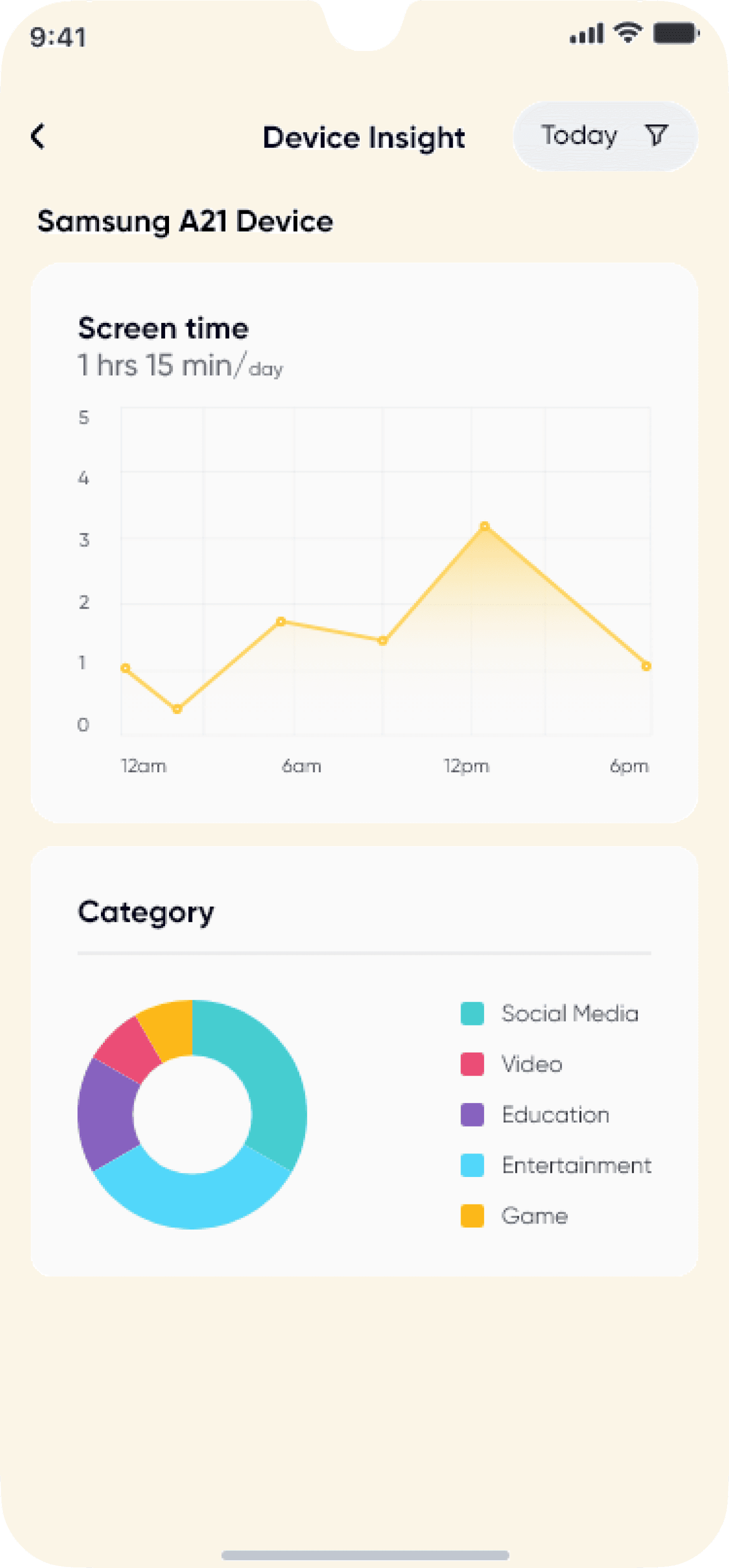
# Insight
The user can view insights based on screen time, category (such as Social Media, Entertainment, etc.), and history.
Select Mode
The user can select a mode by simply swiping left or right
Set Timer
After selecting a mode, the user can set a timer for screen time.
Connected Device
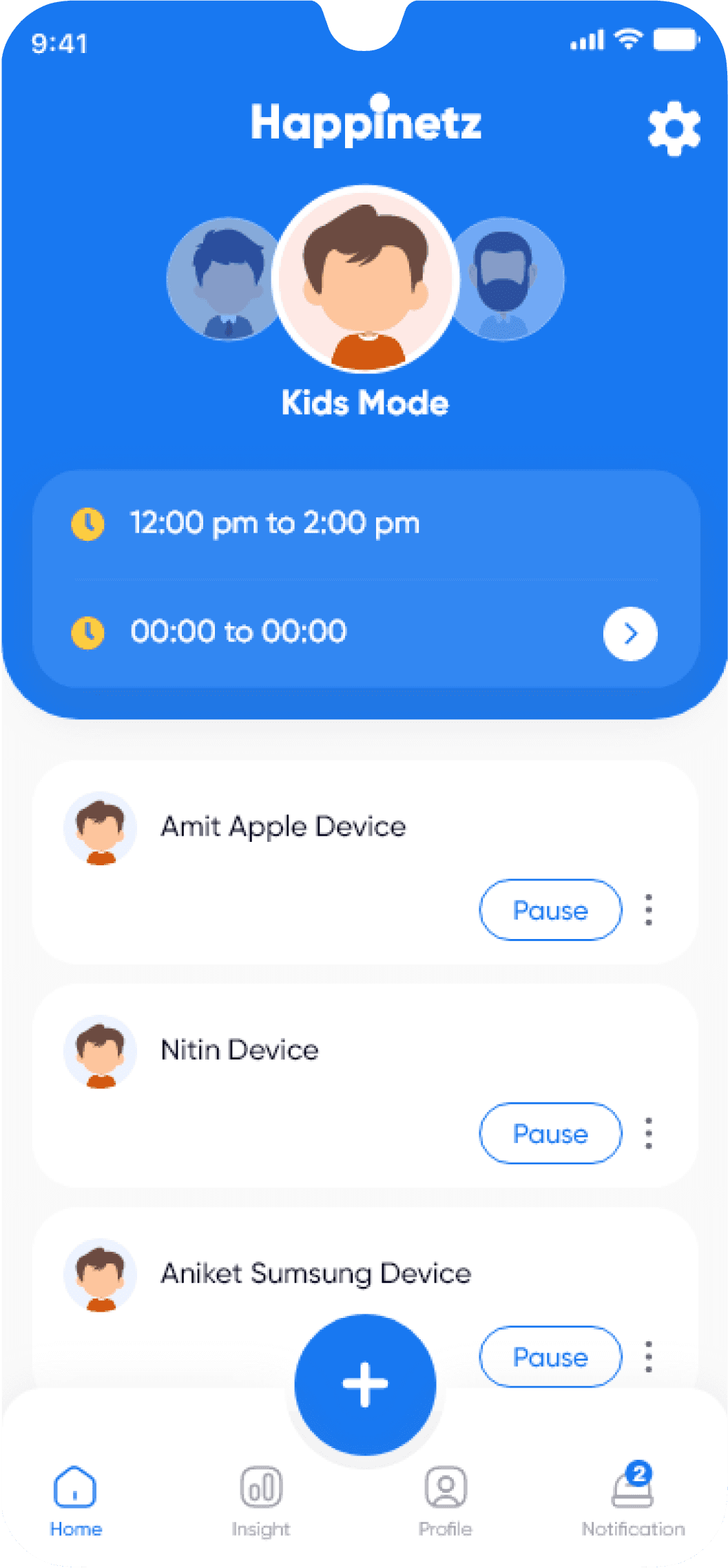
All connected devices are shown here, and you can pause the internet at your convenience.
Add Device
You can add more devices by clicking on this plus button.
HI-FI Designs
Takeaways
Impact:
In this study, I aimed to solve common user issues and understand how UX design affects their mood and decision-making. Through this research and design process, I learned how user experience strongly influences users’ emotions and choices.
What I Learned:
I have gained valuable insights and knowledge through the design process. Some of the key things I have learned include:
Understanding user needs
Importance of simplicity
Accessibility considerations
Understanding and implementing user feedback
Manage information to not overwhelm the user
Next Steps
01
In the next step, I started working on a website for users who want to order and learn more about Happinetz products.
02
I also plan to work on a subscription plan option that covers all types of users.
Thank You